Register Your App
Register your app with the Presentation Exchange Platform before creating wallet requests. Registration tells the wallet and credential services which app is asking, which domains are allowed, and which credential types the app may request.
Registration Checklist and Example
Use Journal’s production registration as a reference. Create your own app record, identifiers, domains, and signing secret rather than reusing Journal’s registration.
| Item | Journal example | Notes |
|---|---|---|
| App ID | iamhuman-journal | Stable app identifier. |
| App name | Iamhuman Journal | Use your app’s public display name. |
| App URL | https://blog.iamhuman.link | Public product URL. |
| Allowed origin | blog.iamhuman.link | The current console stores the host without scheme or path. |
| PD fetch domain | blog.iamhuman.link | Host serving the wallet’s request-fetch endpoint. |
| VC submission domain | blog.iamhuman.link | Host receiving the wallet submission. |
| Scope ID | basicaccess | Journal’s production scope identifier. |
| Scope Title | Basic access | Display title for the scope. |
| Credential Type Name | Basic Access | Corresponds to BasicAccessRequestVerifiableCredential. |
| Description | Verify you are human to comment | Explain the protected action. |
| Request Mode | ConfigDriven | Downloaded config uses configDriven. |
| Target Credential | Human | Downloaded config uses HumanVerifiableCredential. |
| Human Source | Not provided | Downloaded policy uses personalDataSource: "notProvided". |
Use HTTPS URLs when constructing wallet fetch and submission URLs, even though the console’s domain fields contain only hosts. Your backend must also validate the full browser Origin for browser mutation endpoints.
Select Save changes to save your app registration.
Enable Testing and Download Your Files
Your backend needs two files from PEP:
- App config: public app configuration that the Presentation Exchange SDK uses to validate request types, domains, and allowed credential targets.
- Request issuer DID: the complete DID, including private-key material, that your backend uses to sign presentation requests.
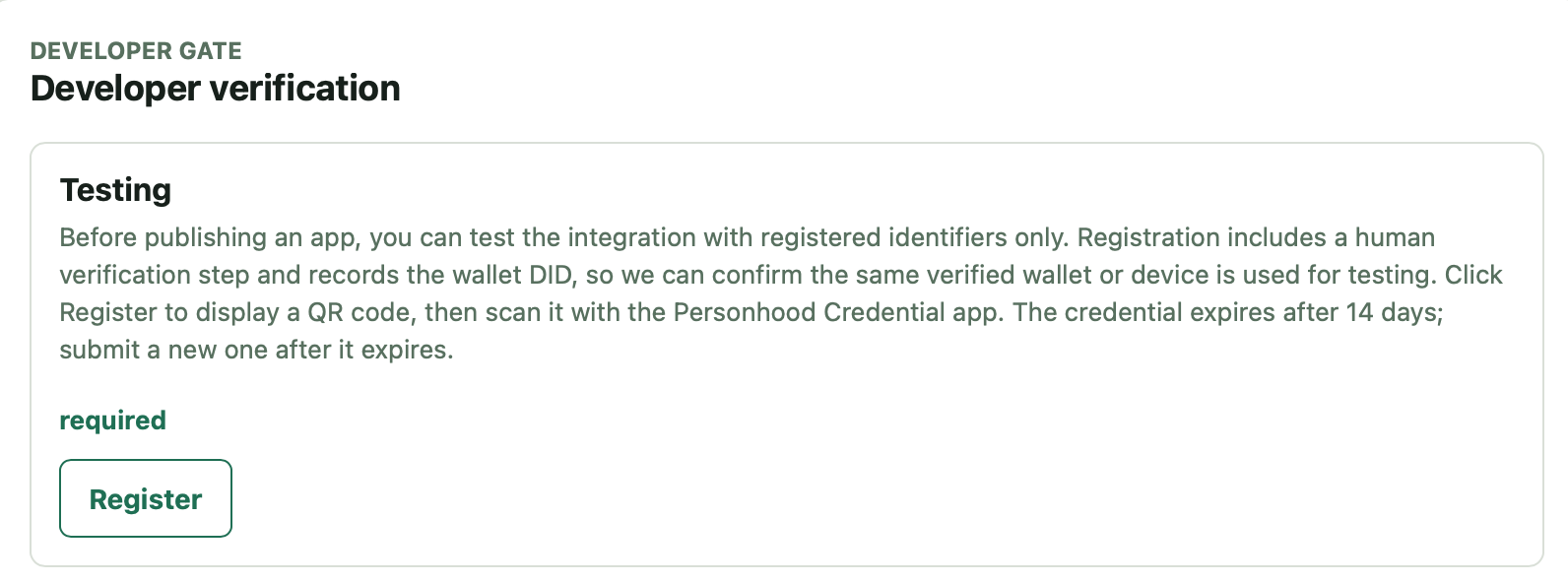
Before you can download the app config, enable testing for the app. First, open Developer Gate and register for Testing. PEP displays a QR code for you to scan with the Personhood Credential app. This verifies your developer wallet and records its DID, so only that wallet can use your unpublished app while testing.
After the Testing registration is verified, return to your app configuration page and select Enable testing. You can then download the app config and store it with your backend deployment configuration.
The app config does not include private key material.
Download the complete request-issuer DID and store it in your secret manager. You can download this file only once.
Security requirements:
- store the complete DID and private key material only in backend secret storage
- never ship the request issuer private key to the browser
- keep separate app records and secrets for stage and production
Output Of This Step
By the end of this step, you should have:
- a registered app
- an app config file
- a request issuer DID stored in backend secret storage
- registered PD fetch and VC submission endpoint domains for your backend
Next Step
Continue to Add the SDK and Load Config.